
On behalf of NHS England, we are collecting the amended monthly Community Dental Services (CDS) Waiting List Data Collection (WLDC), beginning in August 2025.
You can read NHS England’s letter regarding systems, and guidance for contractors completing the return on their website.
Collecting this data will provide:
- a national, comparable, standardised waiting list data set covering waiting times in CDS
- full visibility of CDS waiting times for adults and children
- information to support operational management of services
- information to provide oversight and understanding of any health inequalities
- baseline information for the future local and national development of CDS
- data which can be used to support oral health needs assessments
Monthly return dates for 2026 to 2027
| Monthly return (launch date) | Completion date |
|---|---|
| 27 February 2026 | 13 March 2026 |
| 31 March 2026 | 14 April 2026 |
| 30 April 2026 | 14 May 2026 |
| 29 May 2026 | 12 June 2026 |
| 30 June 2026 | 14 July 2026 |
| 31 July 2026 | 14 August 2026 |
| 28 August 2026 | 11 September 2026 |
| 30 September 2026 | 14 October 2026 |
| 30 October 2026 | 13 November 2026 |
| 30 November 2026 | 14 December 2026 |
| 31 December 2026 | 14 January 2027 |
The collection will open on the last working day of each month and will close at 11:59pm 14 days after opening.
An invitation to action this will be sent from [email protected]
A unique link will be provided in each email for your contracts, and you will receive one invitation for each contract where you have been nominated as the appropriate contact. You should check that you are using the correct link for each contract when submitting your data.
Accessing the CDS collection
When you receive the invitation email, select the link provided to access the collection.
Completing the form
Fill in all fields on the CDS form.
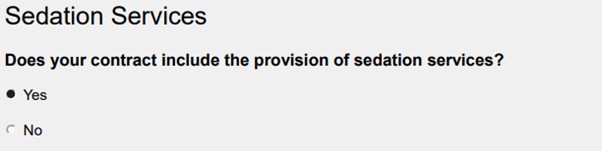
If your contract includes Sedation or General Anaesthesia services, select Yes for the relevant services and complete the corresponding sections:
Important Notes
- Each data field is mandatory so if there is no data to report, a 0 (zero) needs to be entered in the relevant field as you will not be able to submit the form otherwise.
- A form entry can be saved to complete at a later point in time - select the save button and exit.
- Once completed, submit your responses by selecting the Submit button in the Final Confirmation section.